Documentation Script Wizard
Documentation Template
Documentation Wizard
Wizard example RTF Script for Textual reports
Wizard example RTF Script for Graphical reports
Wizard example DXY Script for Textual reports
Wizard example DXY Script for Graphical reports
Documentation Wizard
The Wizard is a visual DG tool used to automate the DT creation process, i.e. the process of creating those parts of DT written in DGML language, so that even if you are not familiar with DGML, you can create DTs.
Wizard is accessed via the Wizard command in the Documentation menu, and the content displayed in Wizard depends on the DA-C context at the moment of starting. The DA-C context means the DA-C selection or report whose window has focus.
In most cases, one DA-C context can be documented in several ways. For example, if in the editor the pointer sits on some symbol name, then, you can document the symbol itself, but also the file you are editing, and the like. Therefore, every DA-C context has a corresponding set of documentation objects. The Wizard offers you to choose one documentation object, for which you want to create DGML script which you will use to document it
For every documentation object the Wizard generates the corresponding data retrieving script. The script results in the DGML variable of the corresponding type. Therefore, in the case of the previously mentioned editor file, the result of the data retrieving script is a variable of the DGML type TFile. If the documentation object is a collection, for example, a collection of global functions, then, the result of the data retrieving script will be again a variable of the corresponding DGML type, but the documenting of this variable will be carried out in the for_each loop, which will be, of course, generated by the Wizard. The data retrieving script itself does not generate documentation, but it only prepares DGML variables, on the basis of which the documentation will be generated.
The Wizard forms a set of DGML scripts on the basis of your choice of information, on the selected object of documenting. These scripts are then inserted into some of the active DTs or into the Clipboard, as it has already been explained. The subset of information on the object of documenting is chosen by selecting a set of properties displayed on the property list.
The properties on the list can be simple or composite. Each simple property contains only one OD data item (e.g. file size if the OD is a particular file). Composite properties can contain several properties, either simple or composite, so it is necessary, when choosing some of the composite properties, to provide additional specification which of the internal properties is to be documented.
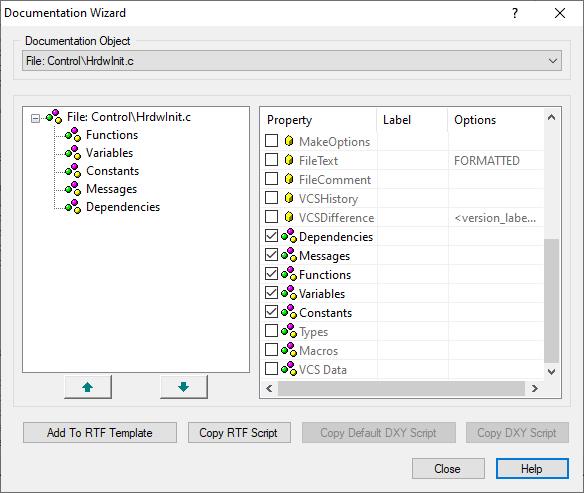
The Wizard dialog box displayed above has the following parts:
Documentation object - The content displayed here depends on DA-C context at the moment of starting the Wizard. A more detailed account of the connection between DA-C context, documentation object, its list of properties and DGML Scripts is provided in the "Appendix D - DGML script".
Property tree - This tree contains all the information on the documentation object which you selected on the property list and which will appear in the generated documentation. On the basis of this tree, the Wizard forms a DGML script block. When the Wizard appears, the tree only has a root whose name is identical to the name of the OD being documented. You add properties to the tree by selecting them from the property list. If you select a composite property on the tree, all the properties it contains can be seen on the property list. As a simple property contains no other properties in itself, selecting it on the tree displays on the property list properties related to the parent property on the tree. The order in which items appear on the tree is important for how the documentation will look. Documentation will be generated in the order specified in the tree. You can change this order using the Up and Down buttons. Using these buttons you can change the position of the selected property in the Property tree in relation to other properties on the same hierarchical level.
Property list - All information on the selected property on the property tree which you can integrate into the documentation is found on this list. The list has the following columns:
Property - You insert a property onto the Property tree by selecting the check box preceding the property on the Property list .
Label - In this column you can enter text which will appear before the property value in GD.
Options - In this column you can select additional information on the documentation object.
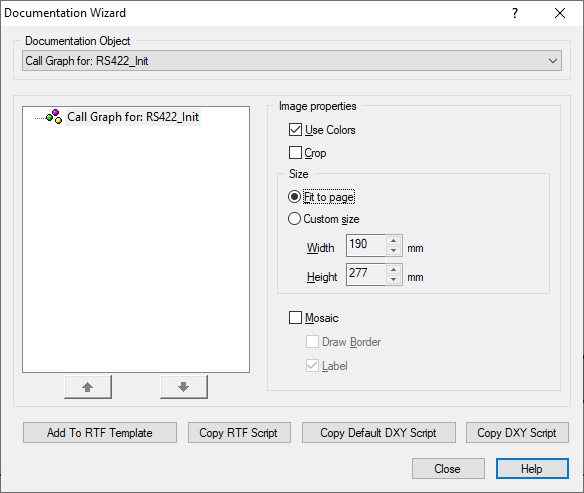
Instead of the property list in the Wizard for properties of the graphics type, a group of options displayed in the next figure appears:
Image properties for OD and properties of the graphics type (FlowChart, CallGraph, TypeGraph, Metrics, MetricsLegend):
Use colors - determines whether the documented image will have color or whether it will be grayscale.
Crop- determines whether extra white space around the image borders will be cropped in the generated document
Fit to page - determines the maximal size of the image that is to be integrated into DT, and after that, into GD as well.
Custom Size - determines the size of the image that is to be integrated into DT, and after that, into GD as well.
Mosaic - the documented image will be divided into segments whose dimensions are defined in the Size property.
Draw Borders - option enables the framing of the documented image and the marking of the lines that should be cut in order to make a picture out of mosaic parts
Label - enables generating at the top of the mosaic image a label displaying the coordinates of each of the generated mosaic parts.
 Copyright © 1993-2022, RistanCASE PR