"Graph" Menu
No Graph Active
Call-Hierarchy Graph Active
Type-Hierarchy Graph Active
Flowchart Active
Group Manager
View Manager
No Graph Active
When the Editor is open in DA-C and the insertion point is positioned within a function name, the Graph menu appears as on the following figure:
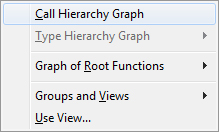
Call-Hierarchy Graph
Draws a new Call-Hierarchy graph for the selected function.
Type-Hierarchy Graph
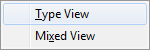
Type View
Draws a new type view graph with the selected type in the start node.
Mixed View
Draws a new mixed view graph with the selected type in the start node.
Graph of Root Functions
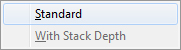
Standard
This command shows the functions that have no caller (main or tasks).
With Stack Depth
This graph display mode shows stack depth, calculated from the root node(s) of the graph. In case that stack depth could not be calculated for particular function, N/A (not available) tag will be displayed, and all functions referenced by such a function, will inherit the "NA" tag, too.
Groups and Views
The Groups and Views command allows to you to define groups and views.
Groups
Views
Use View
With this dialog box you can choose the active view of your project.
The Use View dialog


Call-Hierarchy Graph Active
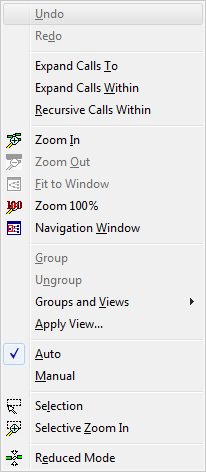
When a Function Graph is active, Graph menu commands realize the following operations with the graph presentation of the project functions:
Undo
Restores a Graph to the way it was before the most recent action. The effect of the Undo command can be reversed using the Graph / Redo command.
Redo
Reverses the effect of the most recent Graph / Undo command. This command is available only after Undo or another Redo command.
Expand Calls To
Shows all calls to the selected function in the Function Graph.
Expand Calls Within
Shows all calls made from the selected function.
Recursive Calls Within
Adds to the graph functions called within the selected one, and then, recursively, functions called in the newly added ones. The depth of this recursion can be set in the "Graph Options" dialog box, General tab (Max. Recursive Depth).
Zoom In
Enlarges the active display of the graph for the magnification percent defined by the Zoom Relative Step parameter. This command can be executed a maximum of Zoom Max. Depth times.
Zoom Out
Reduces the active display of the graph for the magnification percent defined by the Zoom Relative Step parameter. This command can be executed a maximum of Zoom Max. Depth times.
Fit to Window
Displays the entire graph in a Graph.
Navigation Window
Opens the Navigation window. The Navigation window is a window which allows easy navigation in graphs.
Group
Replaces a group of selected nodes with a single group node. You can specify a new node name. Note that this group is temporary in regard to those created by Graph / Groups and Views / Groups.
Ungroup
The Ungroup command displays nodes grouped using the Graph / Group command again.
Groups and Views
The Groups and Views command allows to you to define groups and views.
Groups
Views
Apply View
The Apply View command allows you to select predefined views.
Auto
The Auto command allows automatic graph arranging.
Manual
The Manual command allows manual graph arranging.
Selection
The Selection command enables you to select multiple graph objects by clicking and selecting a rectangular area.
Selective Zoom In
The Selective Zoom In command allows selective zooming in.
Reduced Mode
The Reduced Mode command activates/deactivates multiple edges grouping between two nodes.


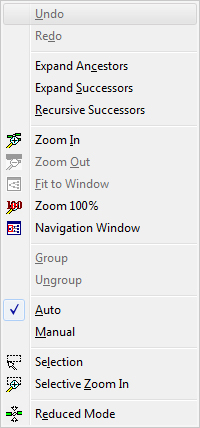
Type-Hierarchy Graph Active
When a Type Graph is active, Graph menu commands realize the following operations with the graph presentation of the project types:
Undo
The Undo command restores a Graph to the way it was before the most recent action. The effect of the Undo command can be reversed using the Graph / Redo command.
Redo
The Redo command reverses the effect of the most recent Graph / Undo command. This command is available only after Undo or another Redo command.
Expand Ancestors To
The Expand Ancestors To command shows all types using the selected type in the Type Graph.
Expand Successors
The Expand Successors command shows all types used within the selected type in the Type Graph.
Recursive Successors
Adds to the graph types belonging to the selected one and then, recursively, types belonging to the newly added ones. Recursion depth can be set in the Graph Options dialog box, General tab.
Zoom In
The Zoom In command enlarges the active display of the graph for the magnification percent defined by the Zooming / Relative step parameter. This command can be executed a maximum of Zooming / Max. depth times.
Zoom Out
The Zoom Out command reduces the active display of the graph for magnification percent defined by the Zooming / Relative step parameter. This command can be executed a maximum of Zooming / Max. depth times.
Fit to Window
The Fit to Window command displays the entire graph in the Graph.
Navigation Window
Brings the Navigation window on top (if it is open). The Navigation window is a window which allows easy navigation in graphs.
Group
The Group command replaces a group of selected nodes with a single group node. You can specify a new node name. Note that this group is temporarily in regard to groups created by Graph / Groups and Views / Groups.
Ungroup
The Ungroup command displays nodes grouped using the Graph / Group command again.
Auto
The Auto command allows automatic graph arranging.
Manual
The Manual command allows manual graph arranging.
Selection
The Selection command enables you to select multiple graph objects by clicking and selecting a rectangular area.
Selective Zoom In
The Selective Zoom In command allows selective zooming in by adjusting the value of Selective Zoom In.
Reduced Mode
The Reduced Mode command activates/deactivates multiple edges grouping between two nodes.
Flowchart Active
You can access commands pertaining to Flowchart from the Graph menu or from the Toolbar. The commands are context-sensitive, meaning that only commands which make sense at any given moment are accessible to you.
When a Flowchart Graph is active, Graph menu commands realize the following operations with the graph presentation of the project functions:
The Graph menu when Flowchart window is in focus
Undo Change Block
The Undo command restores a Graph to the way it was before the most recent action. The effect of Undo command can be reversed using the "Graph / Redo" command.
Redo
The Redo command reverses the effect of the most recent "Graph / Undo" command. This command is available only after Undo or another Redo command.
Structured View > Non-Structured View
Displays the Structured or Non-structured view.
Fit to Window
Displays the entire Flowchart.
Normal View
Displays Flowchart in its normal size, that is block size corresponds to the values set in options.
Navigation Window
Opens the Navigation window. The Navigation window is a window which allows easy navigation in graphs.
Level
,
, . . .
1...9
Displays flowchart up to given level.
Define
Prompts you for custom expand level.
All
Expands all expandable blocks of flowchart.
Expand
One
Expands selected block for one level.
All
Expands all expandable blocks of selected block.
Collapse
Compresses selected blocks of flowchart into one block.


Group Manager
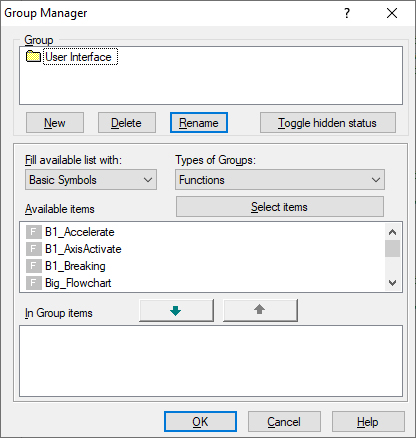
For independent forming of groups activate the Graph / Group and Views / Groups menu command, and use the Group Manager dialog shown on the figure bellow:
Using the Group Manager dialog you can create new groups, set their content and set Hidden status ("Using Views in the Graph"). Also, groups which you have created yourself can be deleted or their names can be changed.
To create a new group, click the New button and on the group list enter the name of the newly-created group. Then fill the group with appropriate elements-subgroups. You fill a group by selecting the items of your choice on the Available items list and clicking the
key transfer them to the In Group items list, at which time they are removed from the Available items list.
You remove elements from the group by selecting the group you want to remove from the In Group items list and click the
key.
Group
Shows all groups that you have created.
Group buttons
The New button creates a new group. The name of the group must be unique in the project.
The Delete button deletes the selected group.
The Rename button changes the name of the selected group.
Toggle Hidden Status changes the Hidden status of the selected group. If there is an "H" inside the group icon, then the group is Hidden. Otherwise the group is not hidden. If the group is Hidden, the group node itself will be shown, but the graph will not show calls to the functions in the group and calls from functions within the group.
Available items
Shows all available functions or groups that you can associate to this group.
In Group items
Shows all functions and groups associated to this group.
Groups
Shows available groups in the Available list.
Functions
Shows available functions (public or library) in the Available list.
Public shows available public functions.
Library shows available library functions.
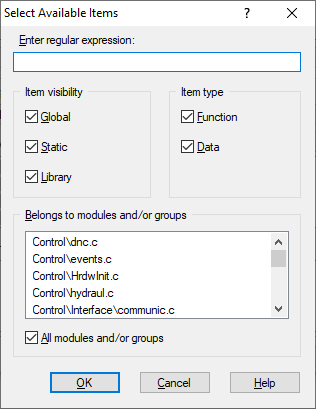
Custom selection
Opens the Functions Filter dialog box. Use this dialog box to select multiple functions in the Available list. Set the criteria which must be satisfied by the functions you want to select, and click OK.
View Manager
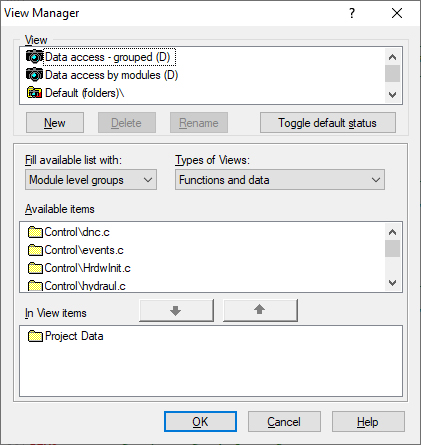
You create views in a way similar to the way you create views in the Group Manager dialog. For working with views you can use the View Manager dialog which is brought up by activating the Graph / Groups and views / Views menu option. The dialog for working with views is shown in figure.
You can use this dialog to create, change, and delete views in the same way as Group Manager. The difference is that views are made up of groups and views so that the Fill available list with is in part altered in relation to. The Basic Symbols item no longer exists, while the Views item has been added. By selecting this item, the available list is filled with a list of predefined and user-defined views.
On the View list you can find user-defined and predefined views. You cannot delete predefined views nor change their content or name.
The Toggle default status enables you to define which of the views will be the default view (#default). The default view is applied on opening the graph. The view is applied to the graph until the time when some other view is applied.
View
Shows all views that you have created.
View buttons
The New button creates a new view. The name of the view must be unique.
The Delete button deletes the selected view.
The Rename button changes the name of the selected view.
Toggle Default Status changes the default status of the selected view. If there is a "D" inside the view icon then the view is a default view. The Default view will be applied to every Call-Hierarchy Graph you open.
Available
Shows all available groups or views that you can associate to this view.
In View
Shows all groups and views associated to this view.
Groups
Shows available groups in the Available list.
Views
Shows available views in the Available list.
 Copyright © 1993-2022, RistanCASE PR